Understanding Mailbox Quotas vs. Account Disk Limits in cPanel

A common point of confusion when setting up email accounts in cPanel is the difference between an individual Mailbox Quota and your overall Account Disk Limit.
If you’ve set a mailbox to “Unlimited”, you might wonder why you suddenly receive storage warnings or why your emails stop arriving. This guide breaks down how email storage works, how to spot storage hogs, and how to keep your inbox lean.
💡 What Does “Unlimited” Mailbox Quota Actually Mean?
Think of your hosting account as a house, and each email address as a closet inside that house:
- Account Disk Limit: The total size of your entire house (e.g., 5 GB, 10 GB, or 20 GB). Everything on your account—website files, databases, and emails—shares this total space.
- Mailbox Quota: The size limit placed on a single closet (e.g., 1 GB for
info@yourdomain.com).
⚠️ The “Unlimited” Catch: Setting a mailbox quota to “Unlimited” simply means that specific closet has no internal wall stopping it from growing. However, it can still only grow as large as the total house allows. Emails always consume space from your main hosting account limit, regardless of individual mailbox settings.
🔍 How to Find Which Mailbox is Using the Most Space
If your account is running low on disk space, you can quickly identify which email address is consuming the most room using cPanel’s built-in tools:
- Log in to your cPanel dashboard.
- Under the Email section, click on Email Accounts.
- Look at the Storage Used column next to each email address to see a quick breakdown.
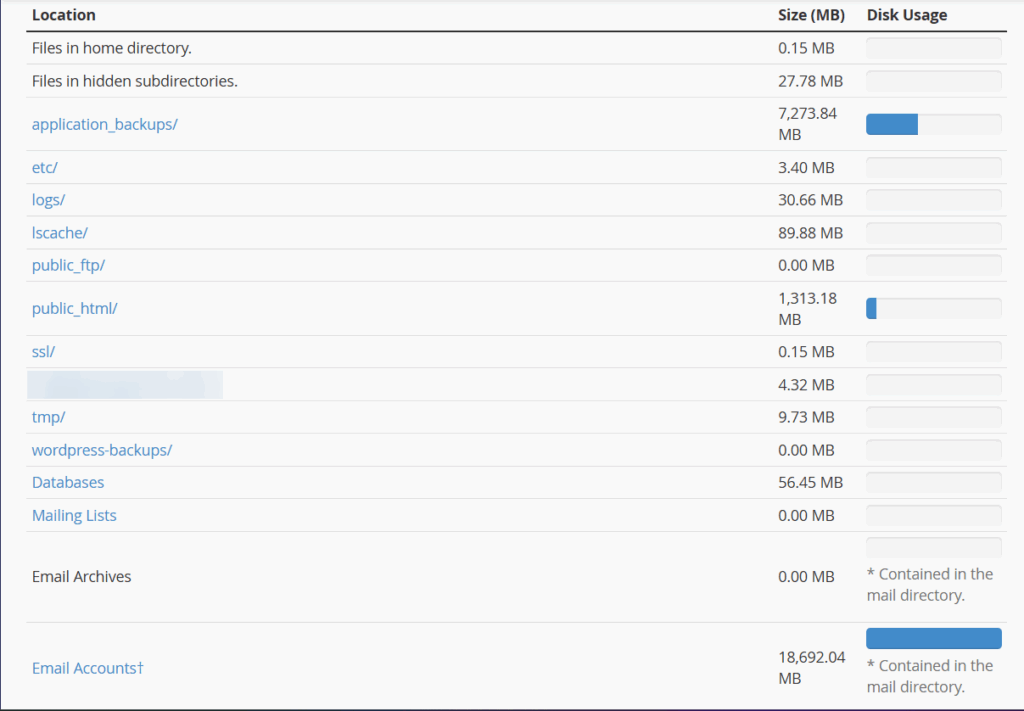
- For a deeper dive, go back to the main cPanel menu and open Disk Usage under the Files section. Scroll down to view the size of your
mailfolder.

🛠️ Common Storage Hogs & Self-Service Cleanup Steps
If an inbox is taking up too much room, the culprit is usually one of three things: old attachments, bloated Sent folders, or forgotten Trash folders.
1. Empty the Trash & Junk Folders
When you delete emails in a mail client (like Outlook or Apple Mail) or Webmail, they are often moved to the Trash folder rather than permanently erased. They still take up storage space until the Trash folder is emptied!
- Log in to Webmail (
yourdomain.com/webmail). - Right-click your Trash and Junk/Spam folders, then select Empty.
2. Clean Up via cPanel Email Disk Usage
cPanel includes an automated tool to clear out old emails in bulk:
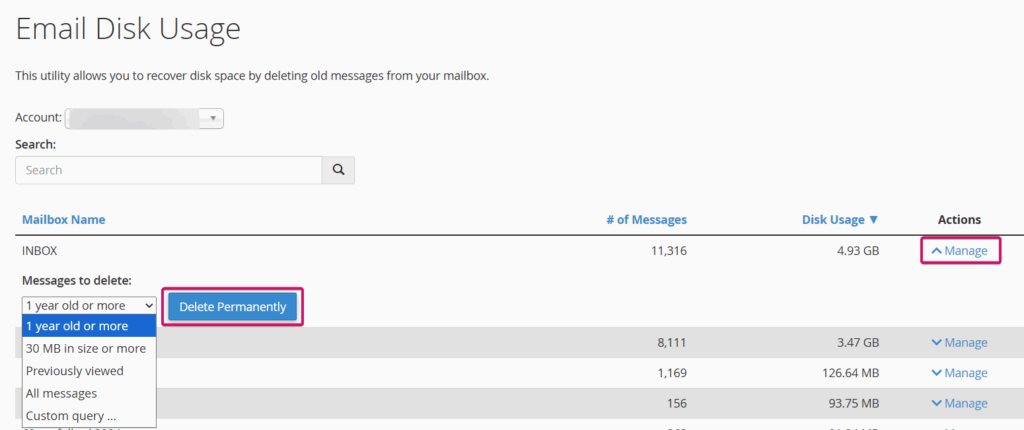
- In cPanel, go to Email > Email Disk Usage.
- Select the mailbox you want to clean.
- Under Actions, choose a filter (e.g., Delete messages older than 1 year or Delete all messages in Trash) and click Delete Permanently.
🛡️ Tips to Prevent Running Out of Space
- Archive locally: Set up your desktop mail client (like Outlook or Thunderbird) to archive older emails onto your local computer’s hard drive instead of leaving them on the server.
- Review Sent items: Large file attachments stored in your Sent folder consume just as much space as incoming mail!
- Set realistic quotas: Instead of setting email accounts to “Unlimited,” set reasonable caps (e.g., 2 GB per user) so one heavy user doesn’t accidentally fill up the space needed for your website to run.
❓ Sill Need Help?
If you are still unsure how to handle or proceed, you can always reach out to us; we’re happy to guide you!