Mac Mail – Adding an email account

This guide will walk you through the process of adding an email account within Mac Mail.
Open Mac Mail
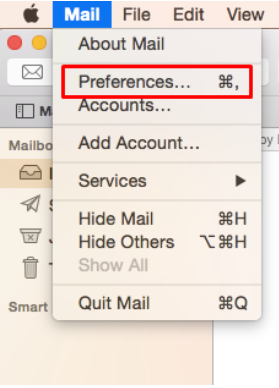
1. When you have opened Mac Mail, at the top left, click ‘Mail’ > ‘Preferences…’
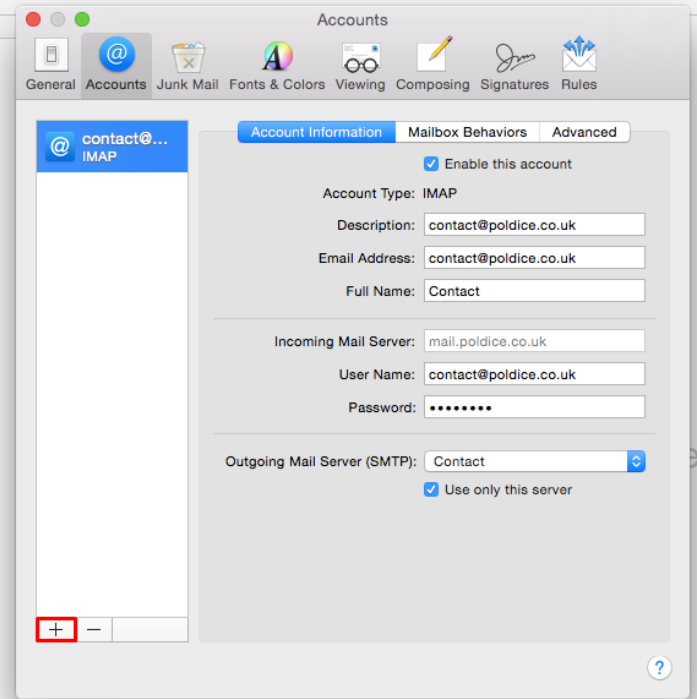
2. Select ‘Accounts’ then click the + icon to add a new account.
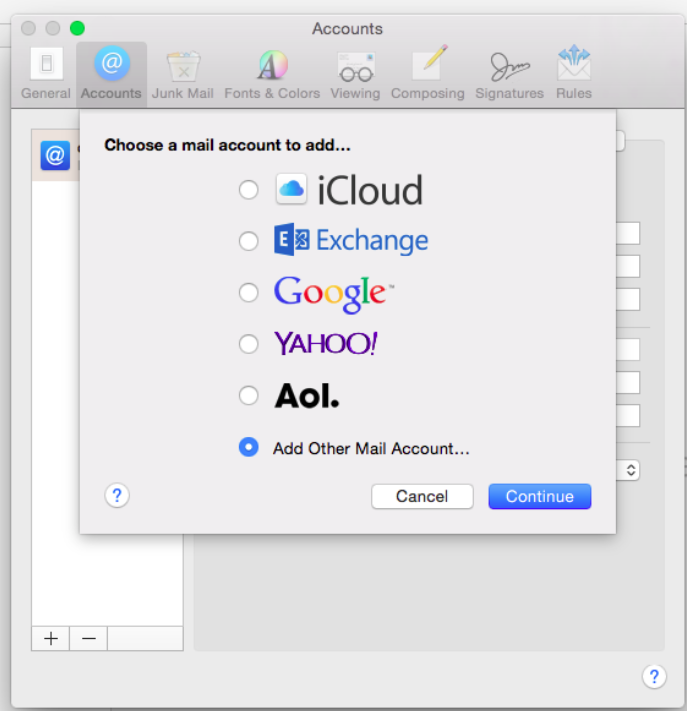
3. You will then be asked which type of account you would like to add, please select “Add Other Mail Account…”
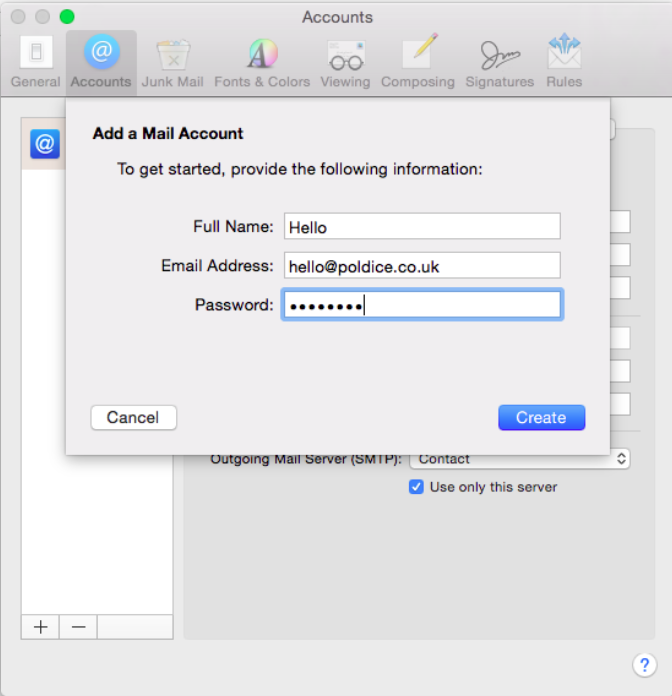
4. Please enter your full email address and password.
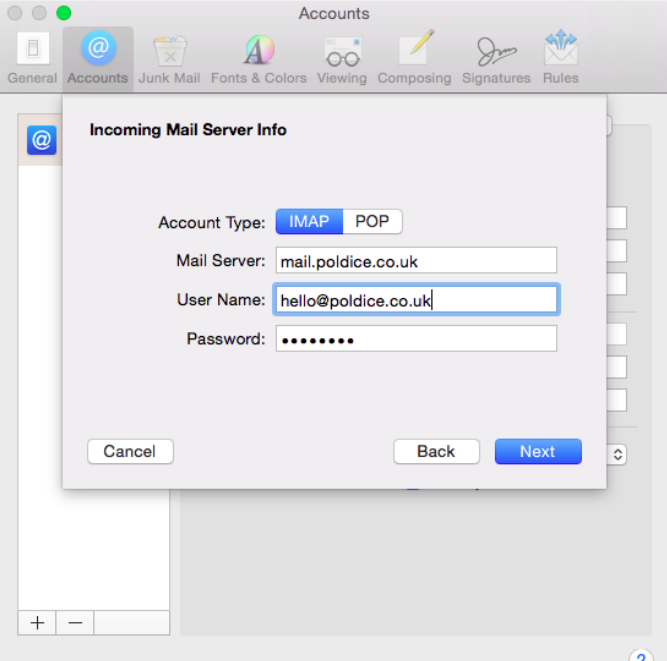
5. You will now be asked to enter in the incoming mail server information.
Recommended settings:
Account Type: IMAP
Mail server for both incoming and outgoing: mail.yourdomainhere.com
User name: Must be your full email address.
Password: The password for the email account in question.
6. You will now be asked to enter in the outgoing mail server information.
Recommended settings:
Mail server for both incoming and outgoing: mail.yourdomainhere.com
User name: Must be your full email address.
Password: The password for the email account in question.
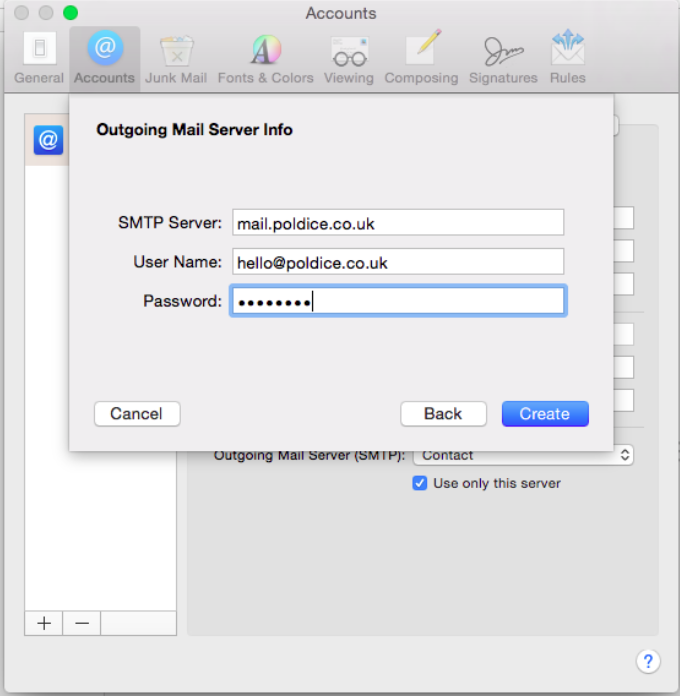
Once you click ‘Create’, your email account should now be set up and ready to go.
Need further assistance? www.freethought.uk/contact/