Email Sent But Not Received? Check These First

What’s Happening
You sent an email from your domain, but it never arrived in the recipient’s inbox. No error appeared on your end, so what went wrong?
The truth: If messages sent from your domain email address appear to go missing, the sending service may still be working correctly. In this case, the mail server accepted and delivered the message to the recipient’s provider, but the recipient’s mail system may then have placed it in spam, junk, or another folder based on its own filtering rules.
Common Scenarios
- A message sent from your domain email address does not appear to reach a customer, even though no sending error is shown.
- The same or similar message may appear to arrive when sent from a different provider, such as a personal email account.
- You want to know whether a sent message was placed in the recipient’s junk or spam folder.
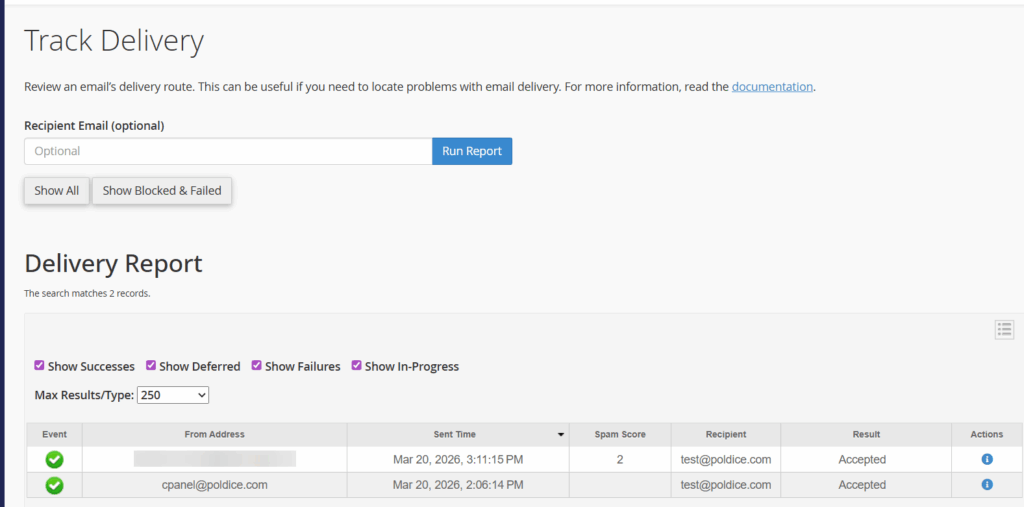
- Mail logs show the recipient’s mail server accepted the message for delivery, but there is no visibility of what happened inside the recipient’s mailbox afterwards.
Once a remote mail server has accepted a message, the hosting platform cannot see whether that provider later delivered it to the inbox, moved it to spam, or filtered it in another way.
What to Check
- Confirm that the message was accepted by the recipient’s mail provider. If mail logs show successful delivery to the remote server, the sending server is working as expected.
- Check that your domain’s email authentication records are set up correctly. The confirmed checks in this case showed that SPF, DKIM and DMARC were all valid.
- If your DNS records are correct and the sending server is not on blocklists, treat the issue as recipient-side filtering rather than a server fault.
- Review the content of the email. Messages are more likely to be filtered if they contain excessive links, overly promotional wording, unusual formatting, or content that resembles spam.
- Keep messages simple and clear, especially for first contact emails. Plain formatting and straightforward wording can improve inbox placement.
- Where appropriate, ask recipients to check their spam or junk folder, mark the message as ‘Not spam’, or add your address to their contacts. This helps future messages from the same address reach the inbox more reliably.
To verify your records:
1. Log into cPanel
2. Navigate to Email Deliverability
3. Look for SPF, DKIM, and DMARC status—they should all show as “Valid” or with a green checkmark
If you need to manually check, go to Zone Editor in cPanel and look for your SPF and DMARC records in your DNS entries.
The Bottom Line
Where delivery logs show the recipient server accepted the message and authentication checks are correct, there is no server-side fault to fix on the hosting account. Any inconsistent delivery is most likely caused by the recipient provider’s own spam filtering decisions.
Need to verify? Contact us and to review your delivery logs, SPF, DKIM, DMARC, and server reputation for complete peace of mind.