Change PHP memory limit and other settings on ULTRA Cloud

The Scout Control Panel allows you to manage PHP settings for your hosted websites. Adjusting these settings can help optimize performance, handle larger scripts, and customize your environment to suit application requirements. This article explains how to change the PHP memory limit and other PHP-related configurations.
Prerequisites
- Access to your ULTRA Cloud via Freethought.
- A valid hosting account with at least one active site.
- Basic understanding of PHP settings.
Steps to Change PHP Memory Limit
- Log in to the Scout Control Panel.
- Navigate to your Sites list.
- Click the Settings tab next to the site you want to manage.
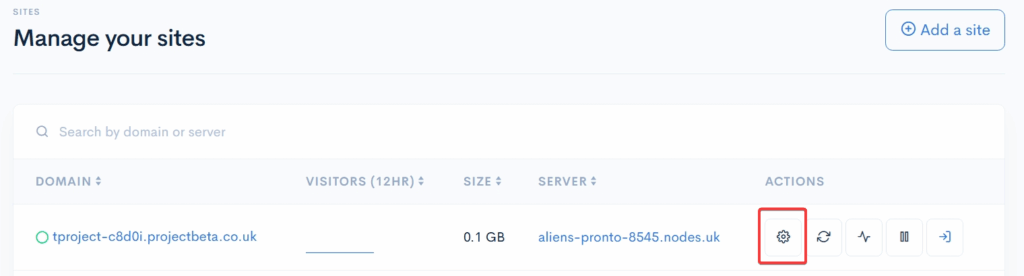
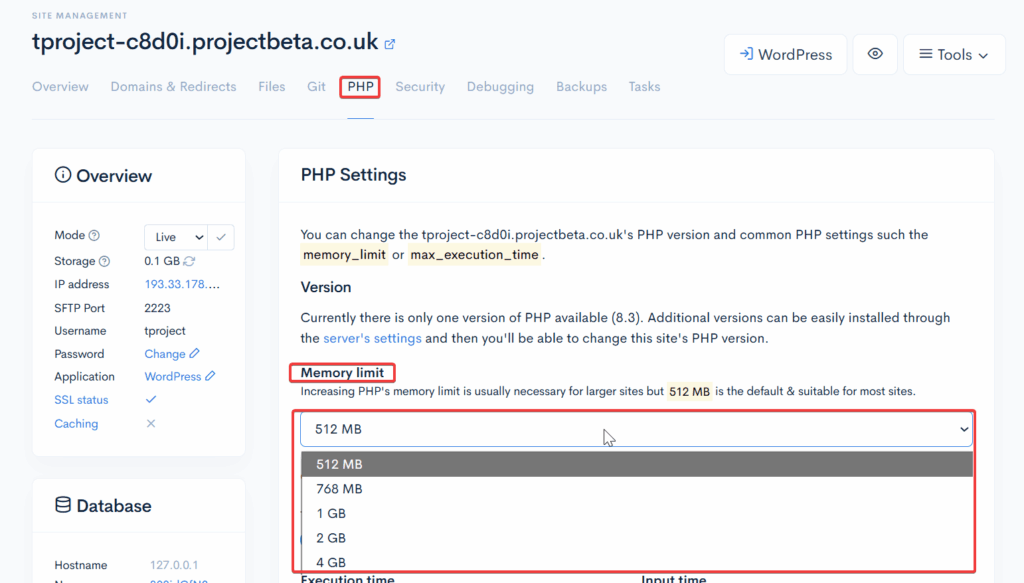
- Select the PHP tab at the top of the page.
- Locate the PHP Memory Limit option.
- Choose your desired value (e.g., increase to 1 GB for resource-intensive applications).
- Scroll down and click Save changes.
- The new memory limit will take effect immediately.
Other PHP Settings You Can Adjust
Within the same PHP tab, you can configure additional options:
- PHP Version: Switch between supported versions for compatibility.

- Maximum Execution Time: Control how long scripts are allowed to run.

- Upload File Size Limit: Increase or decrease the maximum file size for uploads.

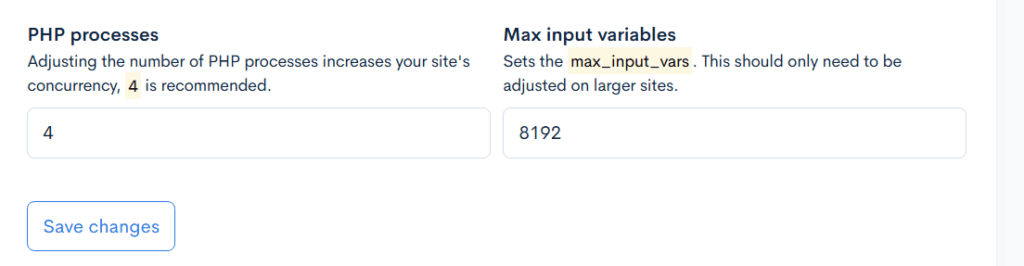
- Simultaneous PHP Processes: Adjust concurrency for handling multiple requests.
- Maximum Input Variables: Set limits for form submissions or large arrays.
- Other Advanced Settings: Fine-tune variables depending on your application needs.
Recommended Practices
- Increase memory limit cautiously: Only raise it if your application requires more resources.
- Monitor performance: Higher limits may affect server stability if overused.
- Keep PHP updated: Use the latest stable version for security and performance.
- Test changes: After saving, verify your site functionality to ensure compatibility