Upgrading your site’s PHP version in Plesk

Updating your website’s PHP version is essential for maintaining site security, improving loading performance, and ensuring compatibility with modern CMS platforms like WordPress, Joomla, or custom web applications.
Plesk allows you to change the PHP version on a per-domain basis directly from your control panel without impacting other websites on the same account.
Prerequisites & Considerations
- Compatibility Check: Before upgrading or changing your PHP version, ensure your website’s scripts, themes, and plugins support the target PHP version (e.g., PHP 8.1, 8.2, or 8.3).
- Easy Reversal: If your website encounters issues or stops working after changing the PHP version, you can switch back to your original PHP version using the exact same steps below.
Step-by-Step Guide to Changing PHP Version in Plesk
Step 1: Open Your Domain’s Dashboard
- Log into your Plesk control panel.
- In the left navigation menu, click Websites & Domains (or Subscriptions if managing multiple client subscriptions).
- Select or search for the domain name you wish to update.
Step 2: Locate the PHP Settings Tool
- On your domain’s dashboard, look under the Dev Tools or Hosting & DNS section.
- Click on the PHP icon (or PHP Settings).
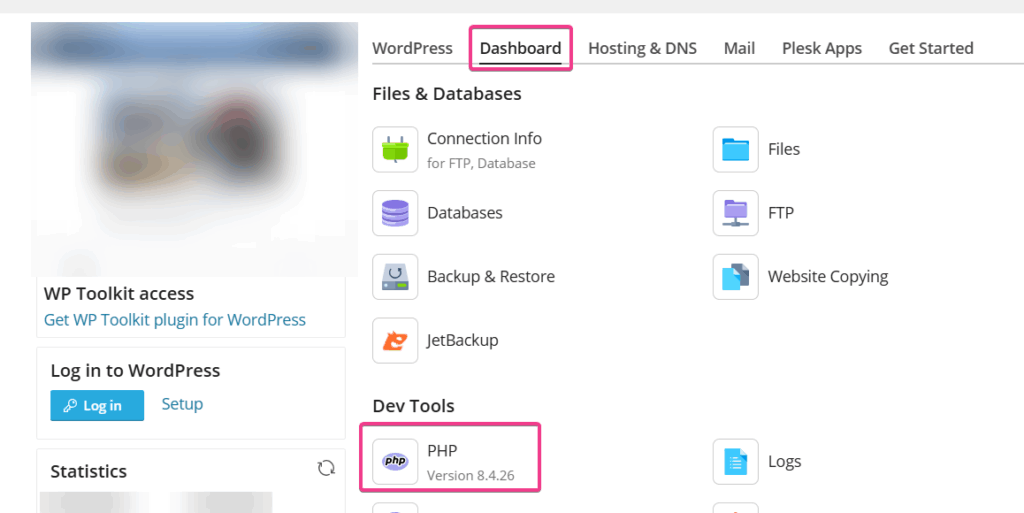
Step 3: Select Your Desired PHP Version
- On the PHP Settings page, locate the PHP support dropdown menu at the top.
- Click the dropdown and select your desired PHP version (e.g.,
8.2.xor8.3.x). - Select the preferred handler type if prompted (usually FPM application served by nginx or FastCGI application).
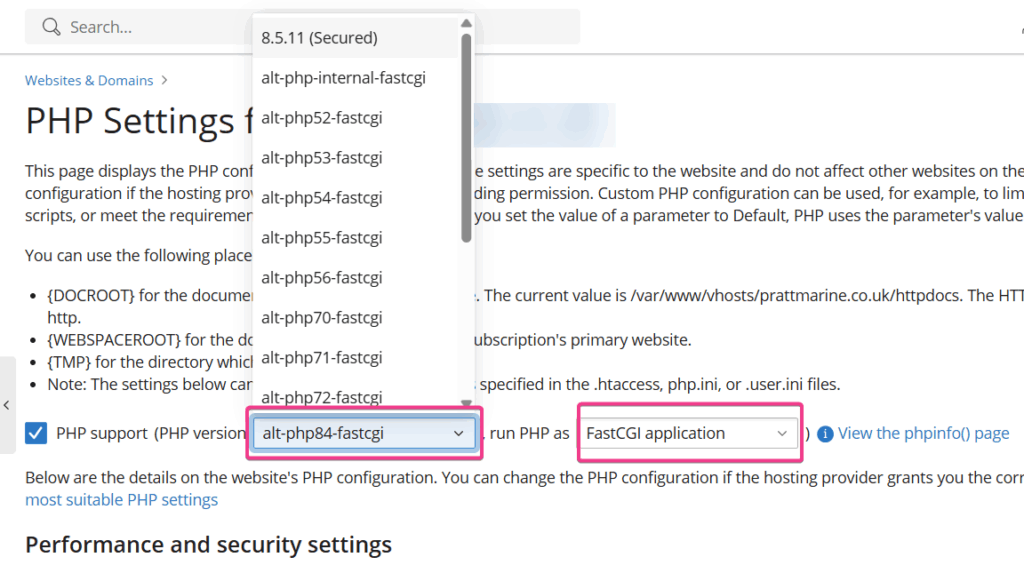
Step 4: Apply and Save Changes
- Scroll to the bottom of the page.
- Click OK or Apply to save your new PHP settings.
- Plesk will apply the configuration update immediately.
Testing & Verification
Once updated, run through these quick verification steps:
- Site Loading Check: Open your website in a new Incognito/Private browser window to confirm pages load without errors.
- Check for PHP Errors: If your site shows a blank screen or a 500 Internal Server Error, your current website code may not be compatible with the selected PHP version. Revert back to the previous PHP version using the steps above to restore access, then update your plugins/themes.
- Verify Active Version: To verify the active PHP version via a script, create a file named
phpinfo.phpin yourhttpdocsdirectory with<?php phpinfo(); ?>and open it in your browser. (Remember to delete this file after testing for security).
When to Contact Support
If a required PHP version is missing from the dropdown menu, or if you encounter persistent server errors after switching versions, please open a ticket with our support team for assistance.