Checking Disk Usage in Plesk

If your hosting account is running low on disk space, Plesk makes it easy to identify what’s using your storage. This guide walks you through how to find and review your disk usage.
Checking Your Disk Usage
- Log in to your Plesk control panel
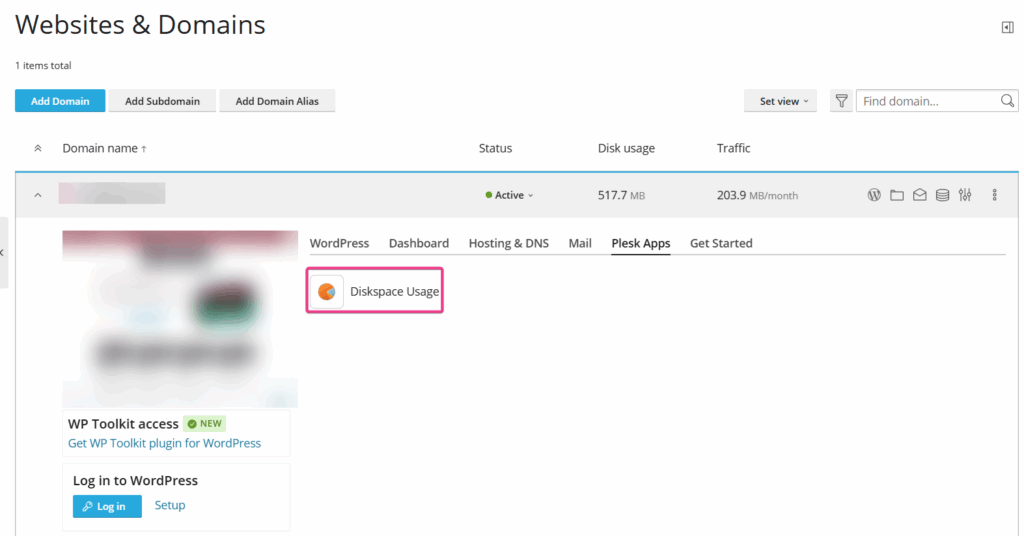
- Go to Websites & Domains and select your domain
- Click the Plesk Apps tab
- Click Diskspace Usage
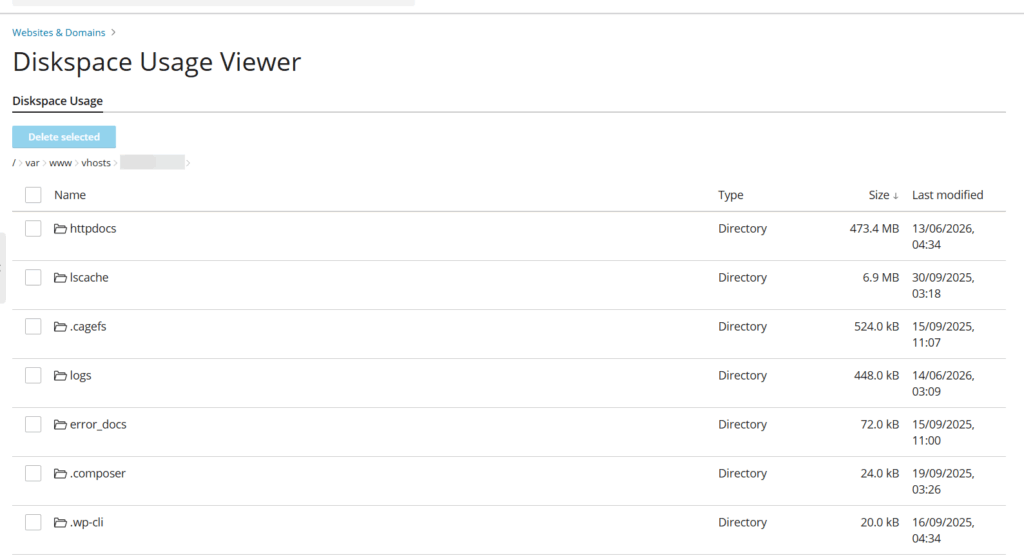
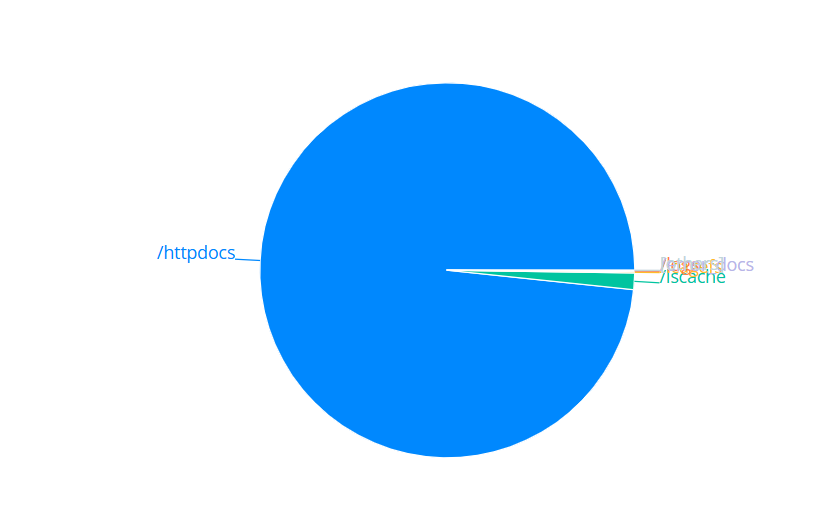
This will give you a breakdown of what is consuming storage across your account — files, databases, emails and more.
Viewing a Detailed Breakdown
When reviewing disk usage, Plesk analyzes the domain’s vhost directory (/var/www/vhosts/yourdomainname.com). The results will display the main directories contributing to storage usage. You can click into individual directories, such as httpdocs, public_html, logs, statistics, or others, to view a more detailed breakdown and identify exactly where disk space is being used.
Common Causes of High Disk Usage
WordPress plugin backups Backup plugins such as UpdraftPlus, All-in-One WP Migration and Duplicator store backup files directly in your wp-content folder by default. These can grow very large over time. Check your plugin settings and either delete old backups or configure the plugin to store backups externally (e.g. Google Drive, Dropbox).
Email storage If you have email accounts hosted on the same plan, large inboxes or accumulated sent/deleted items can take up significant space. Regularly empty your Trash and Spam folders via webmail.
WordPress media uploads The wp-content/uploads folder can grow considerably over time, especially if large images or videos have been uploaded. Remove any unused media from the WordPress Media Library.
Log files Server and application log files can accumulate quietly in the background. These can usually be cleared safely — contact support if you are unsure which logs are safe to remove.
Tips to Free Up Space
- Delete old or unused plugin backup files from your file manager
- Clear out your email Trash and Spam folders
- Remove unused themes and plugins from WordPress
- Delete unused media files from the WordPress Media Library
When to Contact Support
If you’ve reviewed your disk usage and are unsure what is taking up space, or if usage seems unusually high without an obvious cause, please contact our support team and we’ll be happy to investigate further.