How to Reset a Lost cPanel Password

If you’ve lost or forgotten your cPanel password, don’t worry — you can reset it quickly without contacting support in most cases.
Option 1 — Reset via the Login Page
- Go to your cPanel login page (e.g.
yourdomain.com:2083orcpanel.yourdomain.com) - Click Reset Password
- Enter your cPanel username or the email address associated with your account
- Follow the link sent to your email to set a new password
Option 2 — Reset via the Client Portal
- Log in to your account at my.cloudabove.com
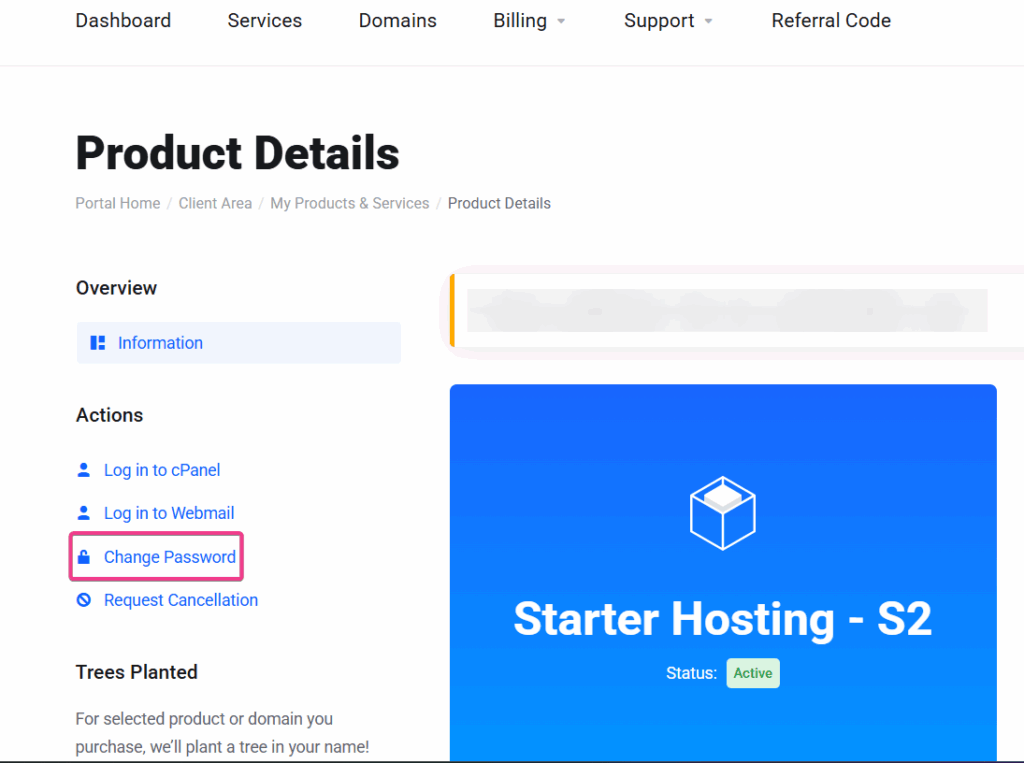
- From your dashboard, navigate to Services and click on your hosting package.
- Navigate to your hosting account
- Look for the option to Change Password
- Set a new password and click Save Changes.
Password Tips
- Use a strong, unique password of at least 12 characters
- Avoid reusing passwords from other accounts
- Store it somewhere secure such as a password manager
🔐 Suspect your account was compromised?
If you suspect someone else has gained access to your cPanel password, please reset it immediately using Method 2 above. Afterwards, check your cPanel FTP Accounts and Email Accounts to ensure no unrecognized accounts were added.
❓ Need Help? When to Contact Support
Please contact us if:
- You no longer have access to the email address linked to your cPanel account
- The reset link is not arriving (check your spam folder first)
- You are locked out and unable to access the client portal either.