Checking Storage Usage In cPanel

Overtime your cPanel account will start to fill up as you use it, eventually causing it to reach/exceed it’s storage limit. There can be various reasons for why the storage is full on your account (e.g. emails, images, backups etc) and this guide will help to show you how you can identify what’s using the storage.
cPanel Disk Usage Tool:
1. Login to your cPanel account. When you first set up an account with us, you would have received an email with the details on how you can gain access to your control panel. If you have lost those details, feel free to raise a support ticket, visit our website for live chat, or call in.
2. Navigate to Disk Usage
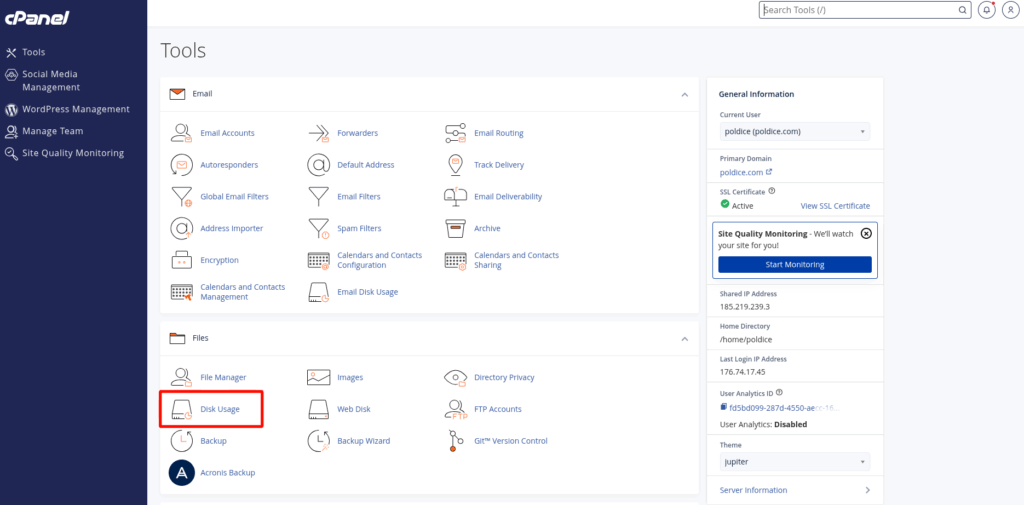
Assessing The Usage:
The cPanel Disk Usage tool will initially give you a general breakdown of the current storage usage on the account, which can be useful for getting a rough idea of where the majority of the storage is being used at a first glance.
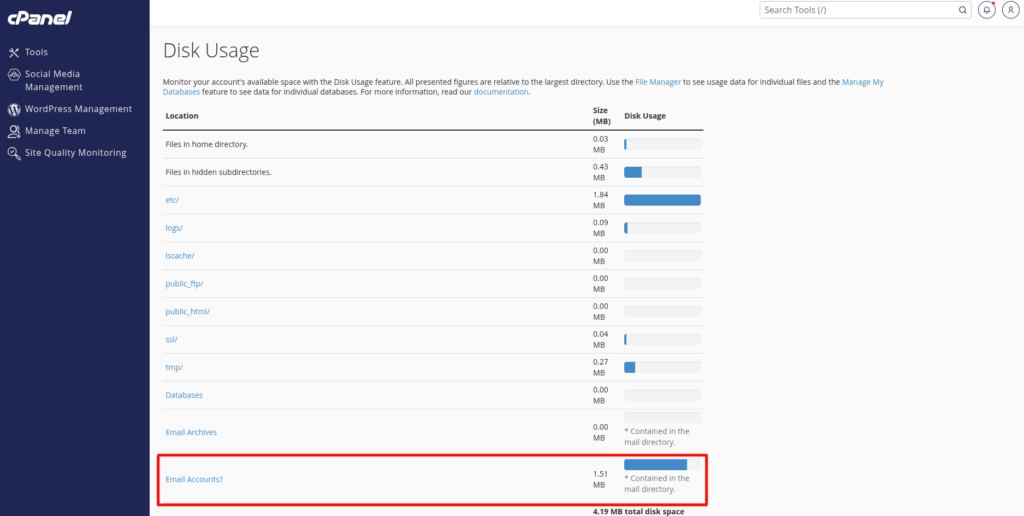
But what if you have multiple email accounts and/or need a more detailed overview of the usage. Scrolling down the page we can see a smaller list similar to the general breakdown we see in the above image.
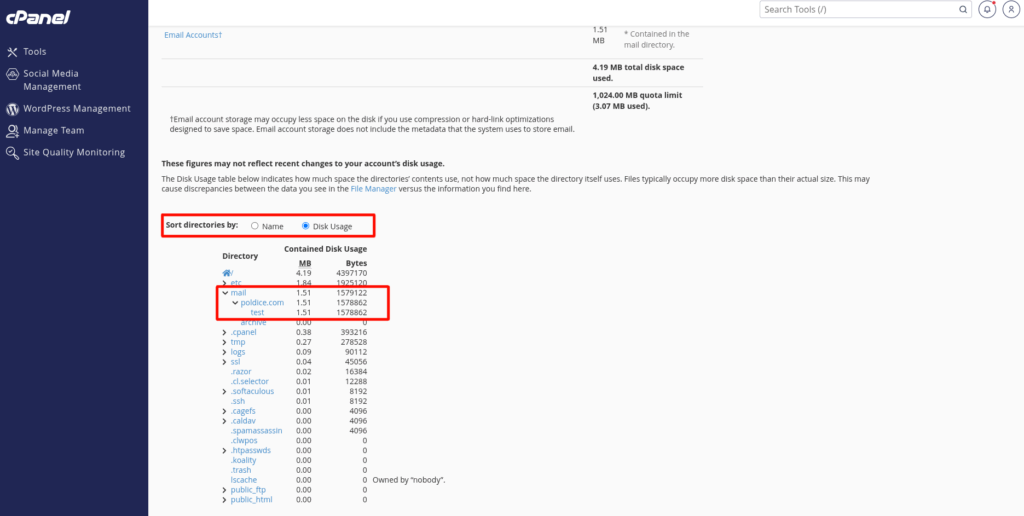
As we identified above, the majority of the storage was being used by emails, however by using the smaller list at the bottom we’ve been able to dig a little deeper and find that the majority of the emails are specifically being used by the “test@” email account.
What to do about the storage usage
Now that we’ve identified what’s using the majority of the storage we have a choice to make;
- We can clear out any old/unwanted data, e.g. deleting emails via Webmail (making sure to remove them from the trash/deleted items folder) to free up space on the account
- Consider upgrading to a higher tier hosting plan to increase the available storage space.
If you are running into any issues or have any further questions or concerns, please don’t hesitate to get in touch.